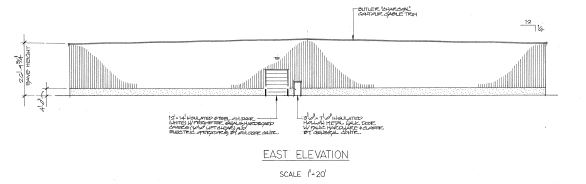
I have included a picture of our standard 2D detail.
Can you have fractions? You suggest ¼:12. Wouldn’t that be better as 1:48? Or is that not the convention?
We commonly use; ¼:12, 3/8:12, ½:12 & 5/8:12. US convention does not use 1:48. On very rare occasions one will see oddball non-integer fractions, but I don’t have an example, handy.
How would you want to show a slope for an angle that hasn’t got integer rise and run? You probably know (as I half remembered, and then checked) that you can input an angle AS a slope - 1:6, 5:12 for example - to the Protractor or Rotate tools when you create a roof slope, and that could be shown as an exact ratio, either to base :12, or simplified from (for example 6:12) to 1:2. If only approximately an integer value, the slope dimension could be preceded by a tilde (~) character, as SU does for approximate values.
I use the ratio method of setting angles often for roof pitches. It is very handy, once it was pointed out to me.
I haven’t noticed this in SU before, but when you move or copy an object you can only place the object to a pre-drawn point or just to some unknown location in 3d space. The distance field only shows an approximate distance. It doesn’t show where this is in 3d space. It would seem logical to allow an xyz placement. I wasn’t able to type into the distance field either, so no choice for an accurate placement.
Select item, select move, move an arbitrary distance in the direction you want, then type the actual dimension in the box. It will move precisely. You can’t input more than one dimension so if you were moving in two planes or three you would have to repeat for each.
Oh, thanks. I somehow missed that you needed to use the sqaure brackets, , and type the coordinates in between. Then you are able to multiply or divide as needed. Thanks Box!
Like many things in SketchUp, the “simple” move tool has advanced options that can take some effort to discover. There’s 3 general methods to discover them:
Read this forum regularly! Including threads that appear to be of no interest to you. I’ve often discovered advanced nuggets this way.
Watch the Tool Tips for other ways to use tools. Opening the “Instructor” tray works as well - but it’s a CPU suck and can cause slow reactions to your modeling.
Read the appropriate help center article. The advanced stuff is often near the end of any particular article.
It just shows that sometimes one is too smart for ones own good. I just assumed that I knew all there is to know about the move tool and didn’t read to the end of the help article. What a goof
Have you read the help page all the way to the end now? I ask because there is another way to enter dimensions that results in a relative move! I leave it to you to discover how!
Unfortunately, the image is too small to see the detail you are referring to. Could you PM or upload here a larger version please? I can’t even open this separately in an image viewer, so can’t seem to enlarge it.
[Edit] But when I open it in a new browser window, and scale it up, it goes blurry and i still can’t see the detail clearly.
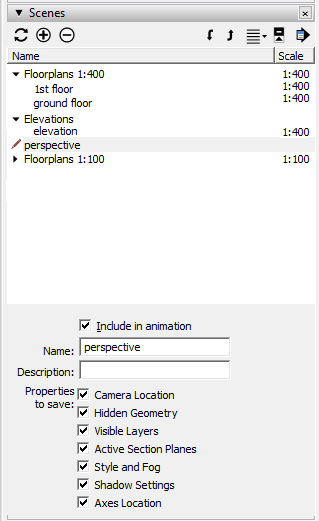
Scales in scenes would allow you to see line widths as they will appear on exported drawing.
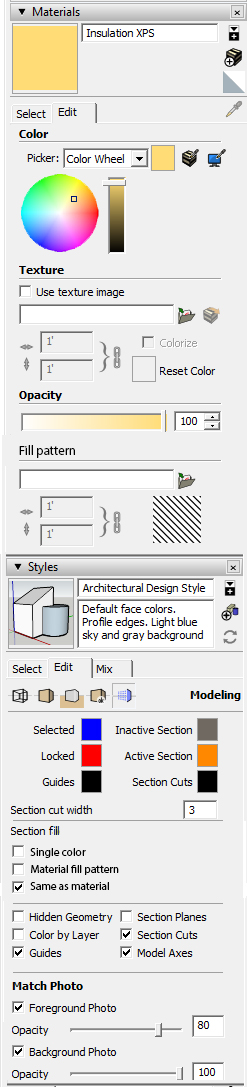
Fill patterns would work when material is applied to solid a component
And a couple more wishes:
-Possibility to group work on a Sketchup file. This could be done for example so that when one user opens a component to be edited, it will be locked from other users untill the user exits the component and saves the SU file.
-Possibility to cross reference components.
-Also, I wondered if it’s neccessary for Layout to be a separate program, or could it be embedded to Sketchup? This might simplify SU->LO workflow quite a bit.
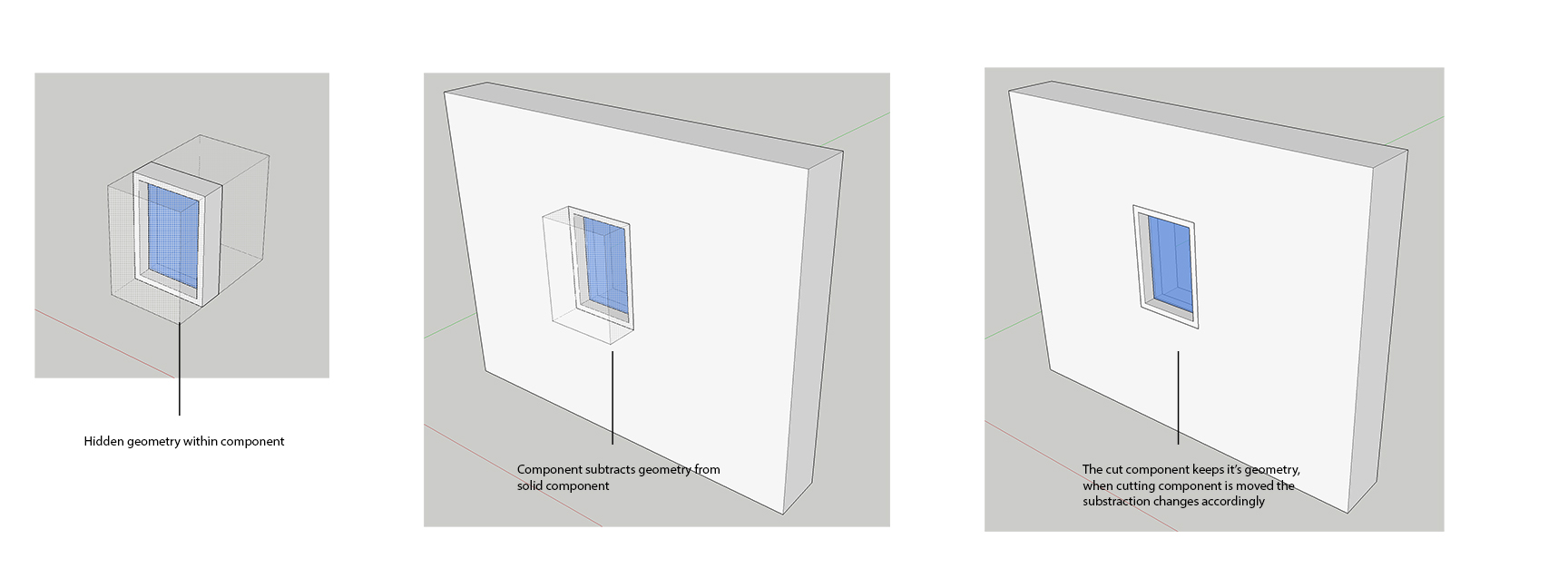
We really need a way to ‘cut’ out everything in a specified area. Currently a ‘cutting’ component can cut one face. I would like to see a way to cut lines and faces that are not on the same plane as the component.
BTW: Face Cutter Extension makes a feeble attempt at this, but can only cut faces on the same plane as the component. For lines the only option is to hide the entire line.
The usefulness of that would be minimal. Bounding boxes are always rectangular. What if I would want a round top window? I believe the ‘cutting’ area needs to be defined by a 3D solid object.