New Filtering Options, Room/Space Support, Enhanced Metadata and Logging
We’ve updated the Revit Importer plugin with a new UI that allows for filtering the imported model by Phases and Entities (Categories). We have also added support for importing Revit Rooms and Spaces, which are now represented in SketchUp as components with their own distinct tags and materials. Furthermore, we’ve improved the way Revit metadata is imported by separating it into Type and Instance attributes. Finally, we have implemented a new logging feature to help us debug user issues more effectively.
Access the Revit Importer in Extension Warehouse, link here. The Revit Importer extension is available with SketchUp Studio and Pro Advanced Workflows (through sales representatives or channel resellers).
The Revit Importer supports .rvt files from versions 2015 to 2026.
What’s New
New UI Options
The Select 3D View step in the import process now has a new section for Geometry where you can refine your selection.
This tab lists all the phases in your Revit view. By default, all phases are selected. You can uncheck any phase you don’t want to import. This allows you to import only the geometry that corresponds to a specific stage of your project’s lifecycle. At least one Phase must be selected.
This tab lists the categories of entities found in the selected Revit view (e.g., Walls, Electrical Equipment, Curtain Panels). Each category shows the number of elements it contains. All are checked by default, but you can uncheck any you wish to exclude. This gives you granular control over what specific types of objects are imported. At least one Entity (Category) must be selected.
Rooms and Spaces from your Revit model are now imported into SketchUp.
Each Room or Space is imported as a component representing its volume.
A new tag is created for Rooms (e.g., Room) and another for Spaces (e.g., Space).
Rooms are assigned a blue transparent material, mimicking the default Revit color.
Spaces are assigned a green transparent material, also mimicking the default Revit color.
By default, the visibility of the Room and Space tags is set to off after import. To see these elements, you must manually turn on their visibility in the Tags Panel in SketchUp.
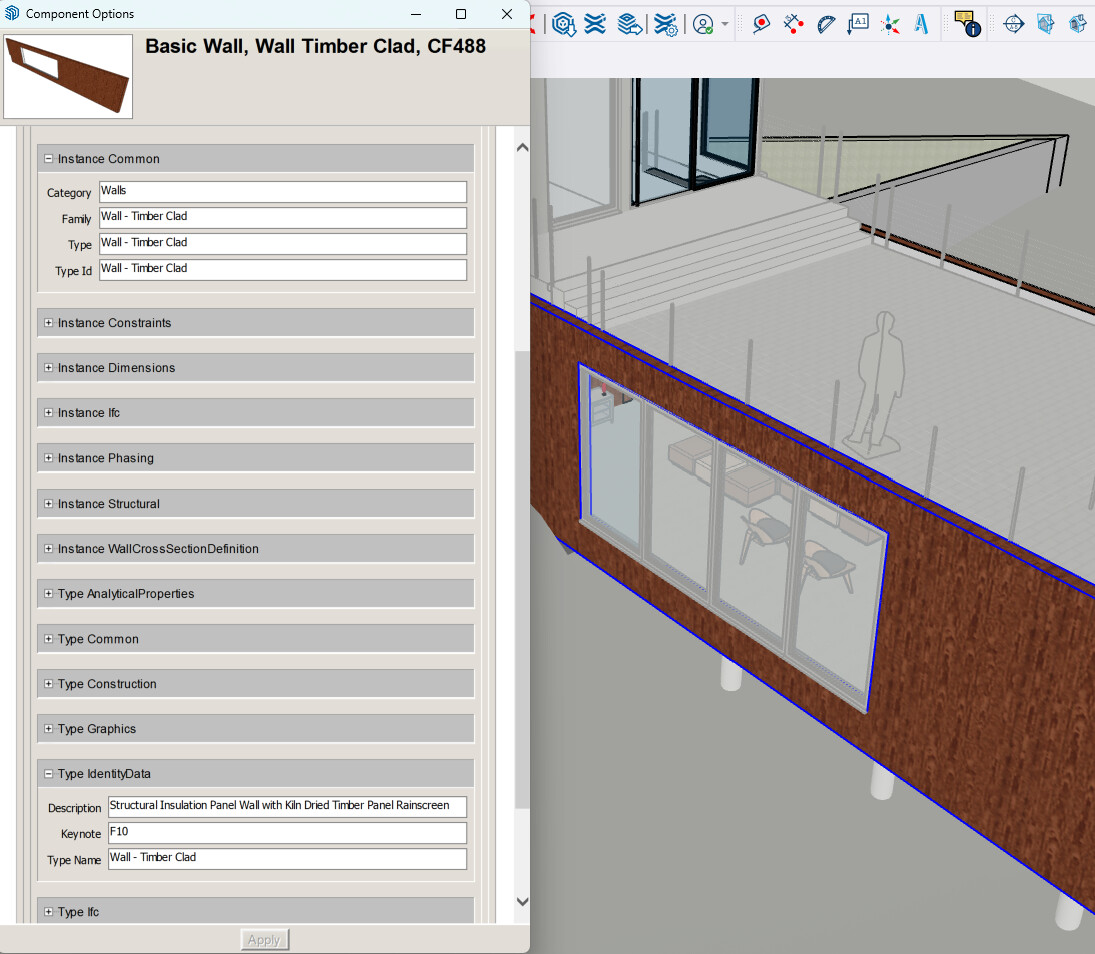
Revit Type and Instance parameters are now imported as separate attributes in SketchUp. In the Component Options dialog, within the PropertySets dictionary, you will see two new groups of parameters:
Type Attributes: These attributes correspond to the Revit Type Parameters and are prefixed with Type.
Instance Attributes: These attributes correspond to the Revit Instance Parameters and are prefixed with Instance.
Log File
The Revit Importer now creates a log file to help our support team diagnose and troubleshoot user problems.
This log file contains two types of logs: Application and Entitlement logs.
The file is created in the same temporary directory that SketchUp uses: C:\Users\<user_name>\AppData\Local\Temp.
The log file will be named in the format Revit_Importer_Log_.log (e.g., Revit_Importer_Log_20250826.log). All import sessions on a given day will be appended to the same file.
The log files are very small (approximately 10KB per run) and are stored in a temporary folder that Windows typically cleans, so they will not take up significant disk space.
The new version of the Revit importer (1.2026.1.2) fails to import the Revit (2026.4) railing family. The top rail profile is missing, whereas the previous version of the Revit importer had no issues.
I am looking for a solution because I cannot use the Revit importer plugin as it is now.
Another issue I have is that the Revit import should be able to import files by phase filter in each view. Importing by phase causes the model to mix elements when demo elements are present in the Revit model.
To summarize, please restore the previous method of importing by view, or include a customization option for importing using phase filters rather than just by phase.
@ddimauro_sgh The team have fixed the railings issue and pushed that as 1.2026.1.3 to Extension Warehouse today.
For the phasing issue you identified, we are working on it but we need to check the change won’t cause issues in other scenarios. By my calculations there are 144 different possible combinations with the default Revit phases and phase filters and we want them all to act in a reasonable manner.
I’m having issues importing a Revit ‘26 file, It fails to convert/import without further explanation. Is there a log file that would give me any idea what is causing the problem?
I’m using the latest 1.2026.1.4 version available on the warehouse.
In my situation, I had to detach the model, save it locally, and then import it into SketchUp. I believe the Revit extension does not work with the Revit central file.
Experiencing two errors that are preventing us from using the plugin. One, the model geometry fails to import any kind of sweep. I’ve upgraded it from 2024-2026, and tried the central and a local as import.
The second issue is the texture mapping. The geometry comes in with no textures or patterns.
The fascia and gutters is a known issue that we are preparing a fix.
The texture is pushing the paths of where the textures are saved in your network / computer, if the image is not in the exactly place you are pointing in the file we cannot find it. We are studying ways in the UI to repoint to the right place, but it will take some time to enhance this experience.
We’ve just released version 1.2026.1.5 for our Revit Importer Private Labs project. This update focuses on key geometry and localization fixes.
Already in the Private Lab? Grab the update and let us know how the fixes are holding up. Want to be part? If you are not part of the project yet but want to help us test, ping me (DM or reply below) within the next 7 days and I’ll get you added to the party!
My team received the same error recently. After much trial and error with importer options and back and forth with arch we found removing their pendant lights, which I assume, had Revit light source solved our issue.
Installed 1.2026.1.5. My team is not using non-English OS so I don’t think I will be much help there. I am hoping we can avoid failed imports and see all Revit materials one-to-one in SketchUp. I’m tasked with finding a solid .rvt import solution (Rhino, Speckle, or some other converter?) which may involve ditching our Studio license. I’d like to get this all done in SketchUp tho. Thanks for the hard work.
We’ve been experiencing several issues with the Revit Importer since the latest update and wanted to document them here in case others are hitting the same bugs.
Bug 1: Mechanical Equipment category not recognized on import
The importer is not bringing over any elements assigned to the Revit “Mechanical Equipment” category — this includes furnaces, rooftop units, etc. These elements appear to be ignored entirely.
We confirmed this is a category-level issue by:
Creating isolated 3D views with only Mechanical Equipment visible and attempting import
Testing with both Revit 2024 and Revit 2025 source files (same result)
Temporarily recategorizing affected families to “Generic Models,” which allowed them to import successfully
This is a regression — imports performed a month or two ago did include a Mechanical Equipment and brought these elements through correctly. Nothing changed on our end between then and now other than the importer update.
We are also concerned that other categories may be silently dropped without us knowing, which is a data integrity issue for production workflows.
Workaround (temporary): Recategorize Mechanical Equipment families to Generic Models before export. This is not sustainable for complex MEP models.
Bug 2: Import fails on first attempt, succeeds on second
Every import attempt fails the first time and then succeeds on the immediate retry without any changes made. While functional, it’s disruptive and suggests something in the importer’s initialization or handshake with the Revit file is not working correctly on the first pass.