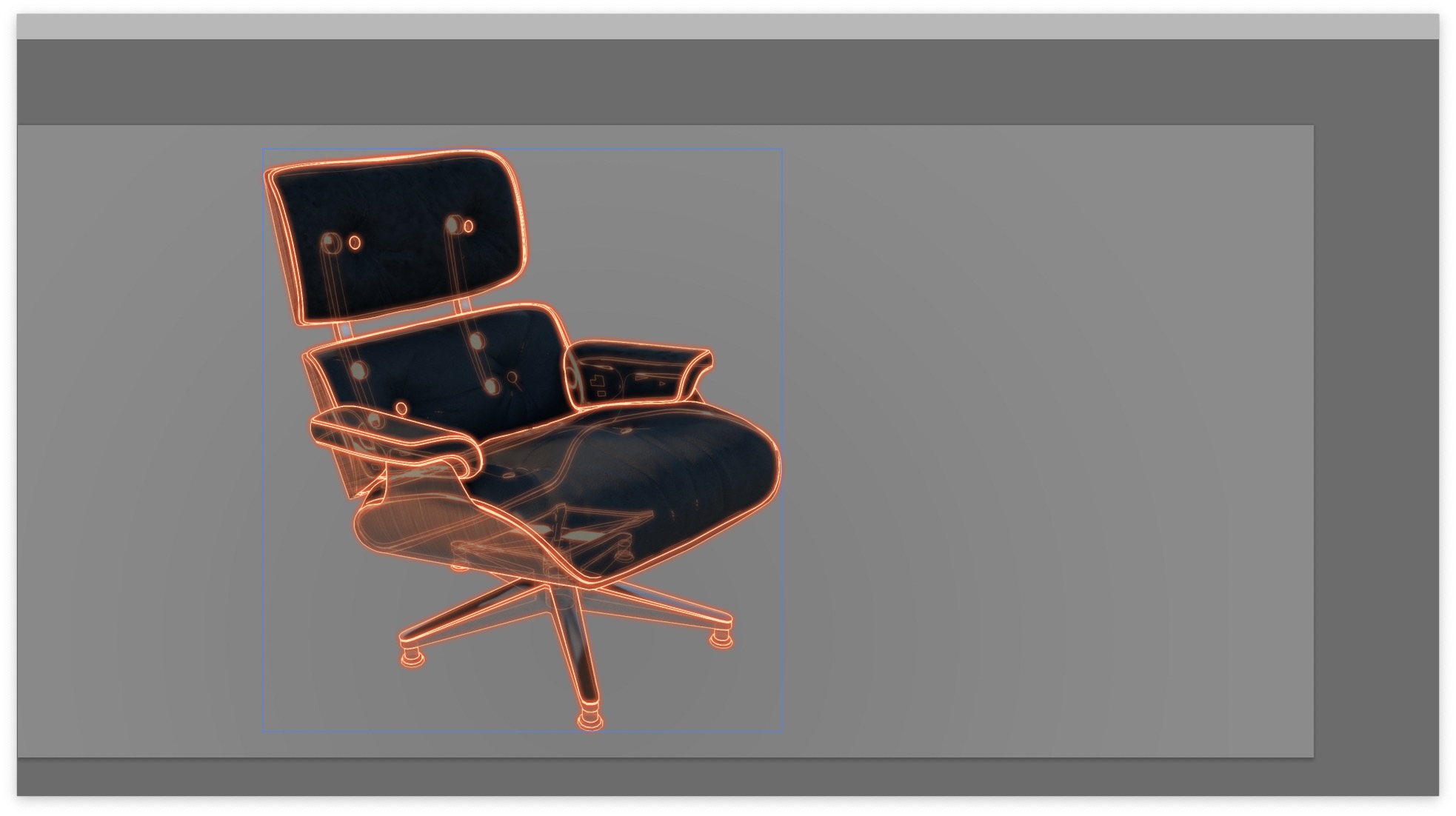
I’m trying to produce some VFX-like pictures for our products in SketchUp. The idea is to have glowing 3D edges/topology superimposed on a photorealistic rendering.
I’m essentially looking for a way to export a hidden line image without any visible faces, or in other words - a “hidden line wireframe” image.
The idea is to superimpose SketchUp’s linework on a photorealistic rendering and add neon-like glowing effects to the lines in Photoshop to get a similar result to this:
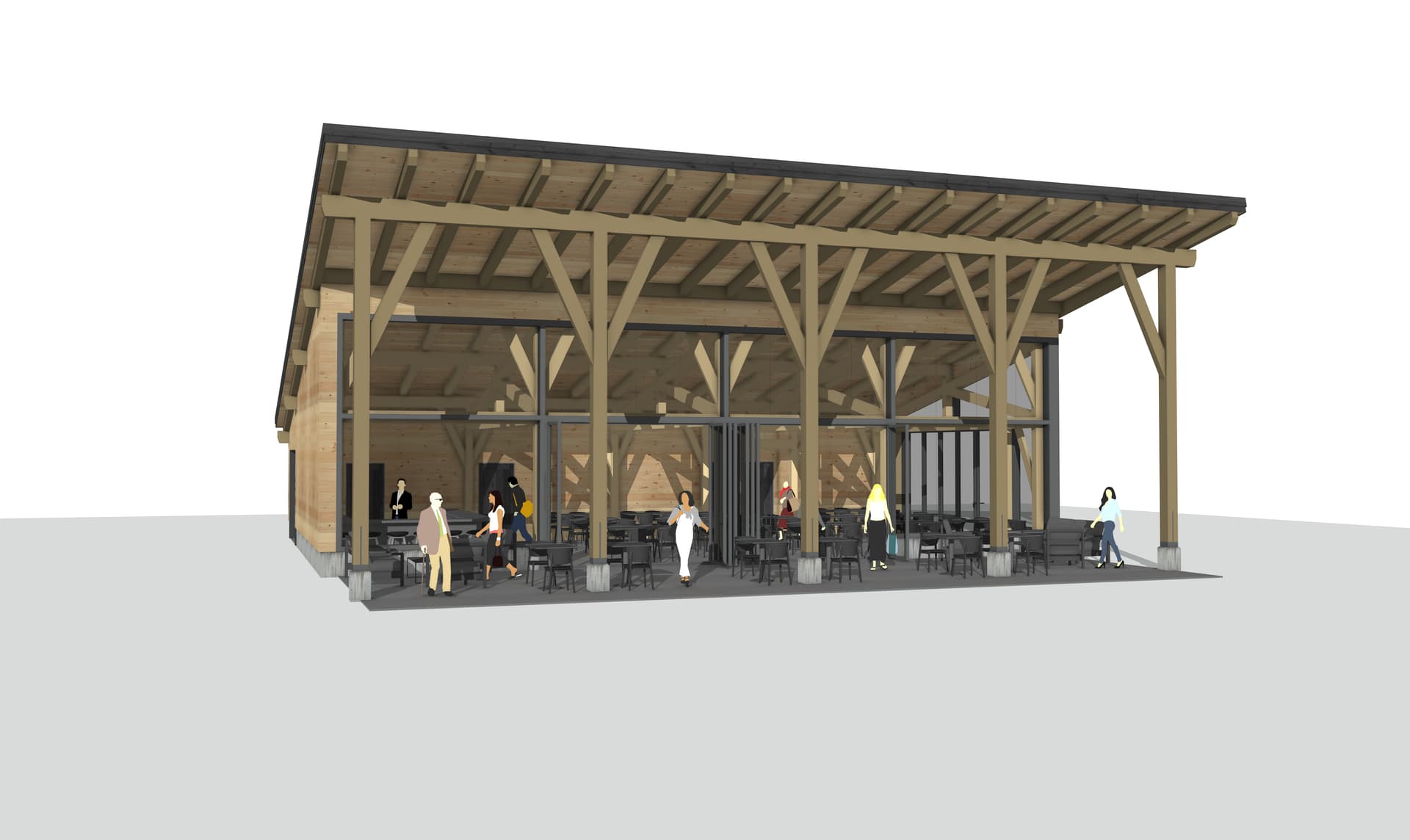
The issue is - we don’t want to see the through solid objects like an X-Ray. As far as I am aware, there’s no known workaround or hack to produce a “transparent” Hidden Line image. I’ve only managed the following:
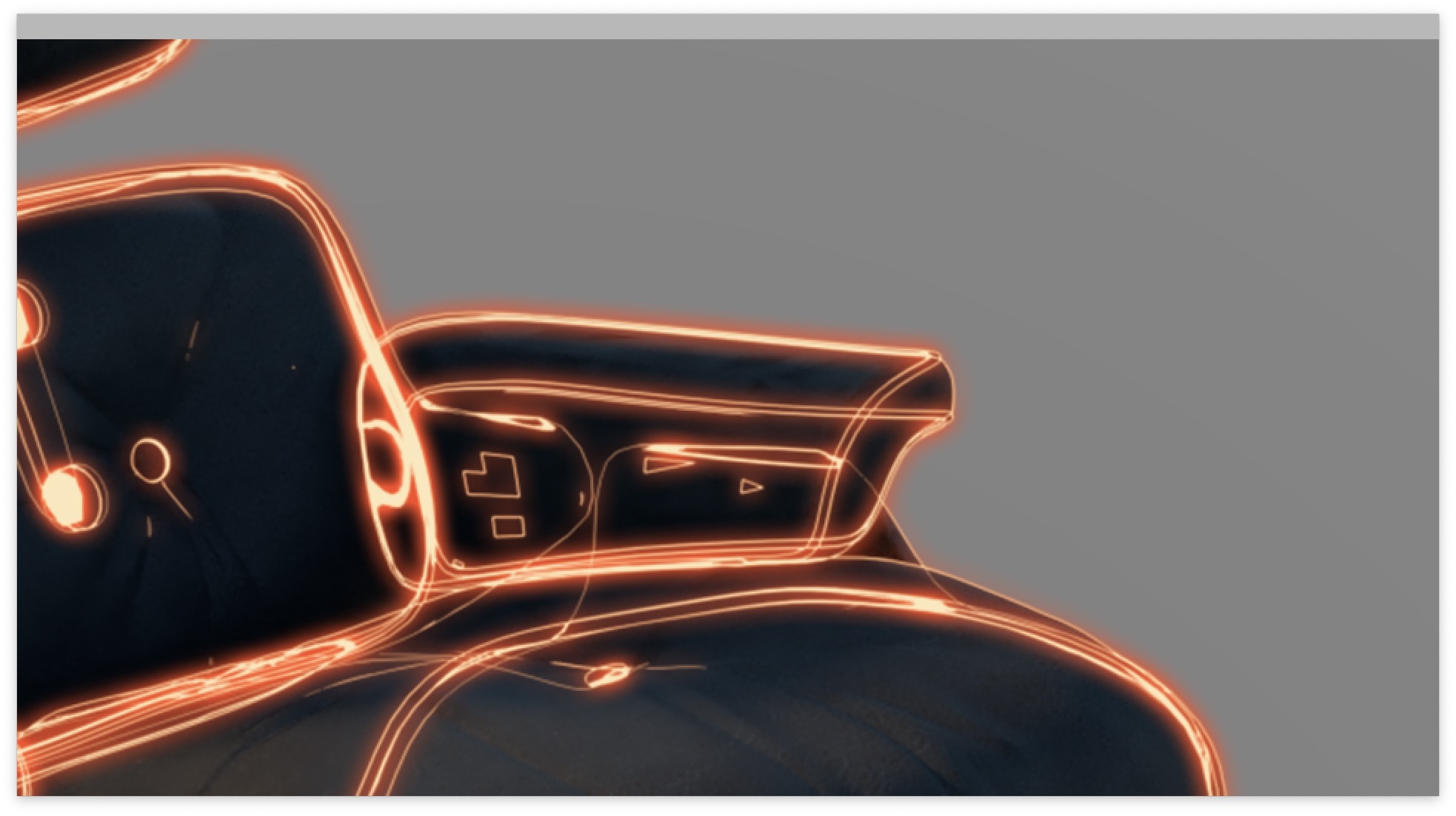
I could edit the Hidden Line image in Photoshop and remove the white fields but that produces imperfect antialiasing, jagged edges and other artefacts. Here’s the result I got by doing this workaround:
Although it works, I’m not satisfied with the result because it’s not good enough. You can see the jagged lines that Photoshop cut away by removing the white faces.
My question is if there’s a native way in SketchUp to get transparent hidden line images with just linework?
What size are you exporting at? When I’ve done similar a long time ago I exported 2-3 or more times the size of the final image - also play with the lineweights in styles.
You could set this up in LayOut and export from there for a bit more control. I don’t remember but you might be able to export as vector which would be cleaner to manipulate / combine then in Ps or other software.
But its late here so I’ll have to wait until tomorrow to look for an example.
Are you also using a rendering extension for the more photo-realistic output? V-Ray has the ability to create an ‘Outline Override’ material that you could apply what will then allow for rendering only the edges at whatever resolution you want. No white faces to delete.
Re: Hidden Edge Style - Even in V-Ray, in order to not see the back edges, you’ll need a face that ‘hides’ those edges. So while you can render just the outer edges from V-Ray as well, as far as the glowing effect in Photoshop, you’ll be back again having to remove the faces to isolate those edges. As to @bmike says, perhaps the best bet is just to render at 2-3 times the resolution you actually need so as to reduce that pixelation.
I made an action in Photoshop that converts an image from grayscale to transparent. It’s original purpose is take a scan of a hand drawn sketch and convert it to black lines and transparency for coloring in, but it would work for this use as well.