Hi. How come my default material/colour has changed from white into another material that I used earlier.
This sometimes happens in some layer, not in every layer (tag). How can I get the white back?
Thanks.
The default material color is set in the style. Did you change the style in the model? What is this new color?
You could either edit the face color for the select style or choose a style that has your desired color. If you edit the style to change the face color, make sure you update the style so it keeps your change. Click on the large thumbnail with the circular arrows to do the update.

Good one. Want to check it but now I can’t see it anymore in the model. Maybe I cleared it wit purging…?
Last time it was all Window material, Used that some moments before… so…
I will keep Style in mind for the next time.
Found it again. This is not the issue. Even when I change all or choose diff styl the material in that tag stays Window/glass.
It late now. 01.33 am. Will look again tomorrow.
Share the .skp file so we can see what you’ve got going on.
OKE Thanks. I will send it by Wetransfer to sketchup@dicoursemail.com
I drawed some extra square plane that is in that specific material ‘window/glass’.
Met vriendelijke groet,
Dion Kradolfer

Boerenstraat 54
4201 GB GORINCHEM
E-mail: dion@nyborjan.com
Tel: +31618551861
Website: www.nyborjan.com
Was there any resolution for this topic? Somehow my default material has been inadvertently changed to another material called [Metal_Corrogated_Shiny]. I looked at my Style and it appears that the faces should be white on one side and a pale blue on the back but that’s not the case. The rectangles I drawin the attached image all came with the [Metal_Corrogated_Shiny] as the default regardless of what the current material is set as.
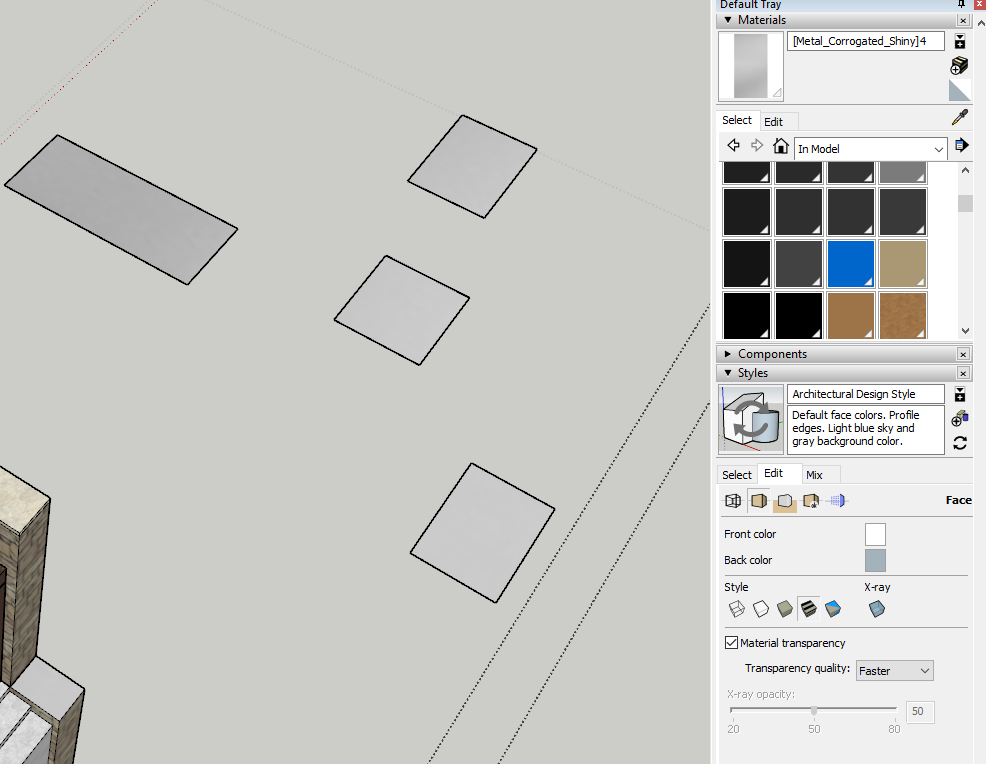

The dotted lines indicate you are editing a group.
The group probably has the texture, so every face you create will show that texture.
That is the most likely cause. Another would be that you are using a style with materials by tag
Thanks for the replies. My actual model is quite sizeable and yes I am editing a group but it persists in my entire model. I will save as and delete a lot of stuff so hopefully the problem remains but in a smaller file. Many of the “backs” of my walls have this material and I think it bleeds through when in Enscape. Just for kicks I copied this portion and pasted into a new file. The default color in the new drawing is the normal white/blue. Somehow the default material is defined as using some Picture 2.jpg and it is locked in the edit window to where I can’t change it.

Hit the spacebar and then escape a few times.
Then open the entity info panel and watch it closely while entering the group, again.
Okay. So the problem appears to be within that specific group (or groups). The white rectangle was drawn within my second floor walls group. The blueish rectangle was drawn within my roof group. And as you can see that [Metal_Corrogated_Shiny] material looks like the default material for the selected group. I have now reselected the true “default” material for that group and now all my shiny rectangles are all the normal default. So I need to check all the groups and verify that the default material for that group is as I wish. The question is as David Byrne once sang, “Well, how did I get here?”

If you’ve applied the material to the group instead of to the faces inside, you’ll see what you are seeing. Usually the best practice is to apply the materials to the faces inside instead or to the group container
Same as it ever was
So I must’ve had the shiny metal material selected and accidently hit the whole group. Cool. Thanks. I think I got it figured out now.
There is a very old plugin (still works in 2021) specifically designed for this by Matt 666, Remove CG Materials.