Deleting Applied Materials

Can anybody help with my question please is its driving me nuts :grinning_face:

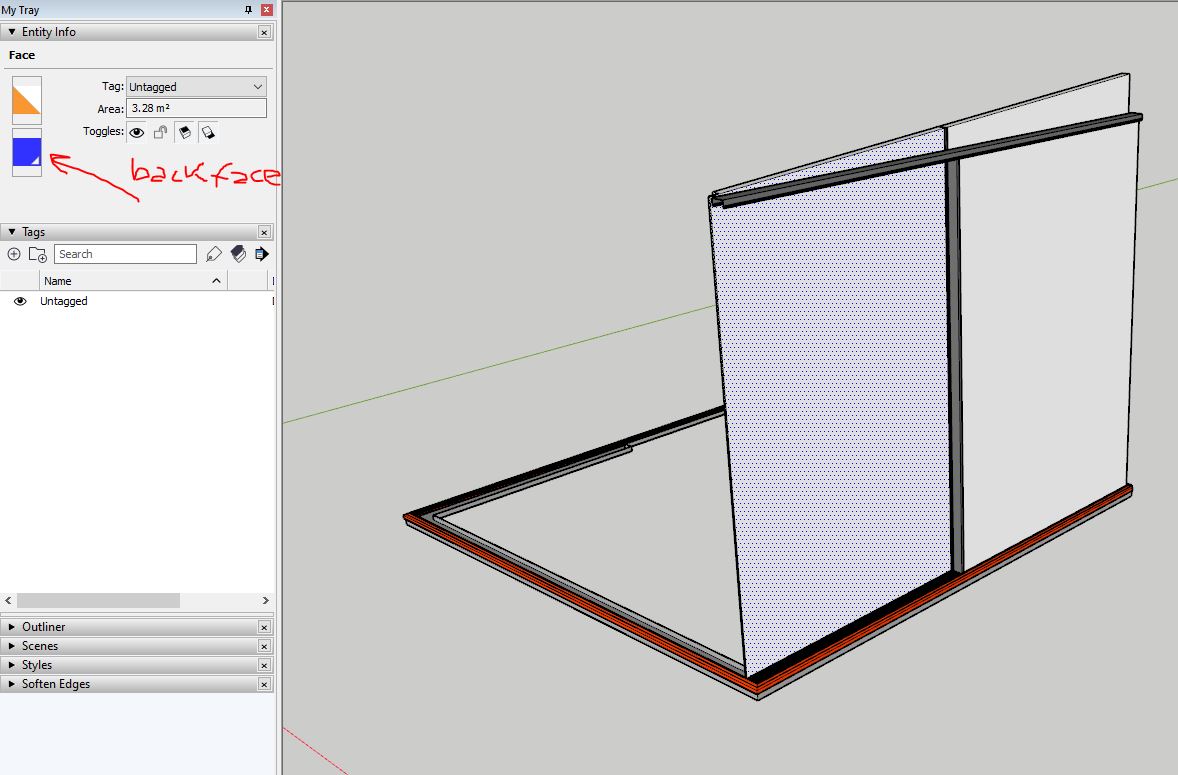
In the attached file there is some ungrouped geometry which I am trying to get back to default colours. It looks all okay until I turn on x-ray then one of the shapes gets a bule tinge that I cannot get rid of?

In the Group called metal is there an easy way to reset all colours back to default?

Thanks for any help - I’ve always struggled working with colours.

Materials Question.skp (87.1 KB)

Select the faces - change to default

1 Like

hi,

two ways comes to mind

either select all, right click and deselect the lines, then you only have faces. and in entity info you can change the material.

or if you really want to get rid of the material, just right click on it and delete it. it’ll revert to neutral.

2 Likes

Would I have to do that for every face? It appears if I select all the faces the back colour doesn’t show in the entity info.

That is exactly what I was looking for, I had no idea I could just select the materials in the model and delete them.

Thank you VERY much :clap: :clap: :clap:

2 Likes

TomTom Material Tools - select geometry, Remove from Selection

You can also remove Backface, etc… super helpful plugin.

3 Likes

Thanks for this :+1:

1 Like

Make sure that these faces are oriented correctly since a bluish color is used for the back of a face by default and a greyish color is used for the front of a face.