Maybe you just need to wait longer.
Please update your forum profile. It’s several years out of date.
OK. So the images on the first three sheets are much larger than they need to be. This one, for example:

I resized the images in an image editor to make them suitable for the size they will end up on the printed page. If you resized the images before you inserted them, they would come in correctly sized and you wouldn’t have to shrink them down.
I also see you have the viewports from the SketchUp references rendered as Raster but you have Output Override turned on and set to render Raster viewports as Hybrid. So you will have a delay during export while the viewports get rendered. This is likely the bulk of the delay.

Untick the Output Override box and you won’t have to wait for the viewports to render.
After resizing the images and unticking the box, your entire LO document exported to PDF and opened in Adobe Reader in six seconds.
I notice you have a lot of unused references in your file that ought to be purged.
Before:

After:
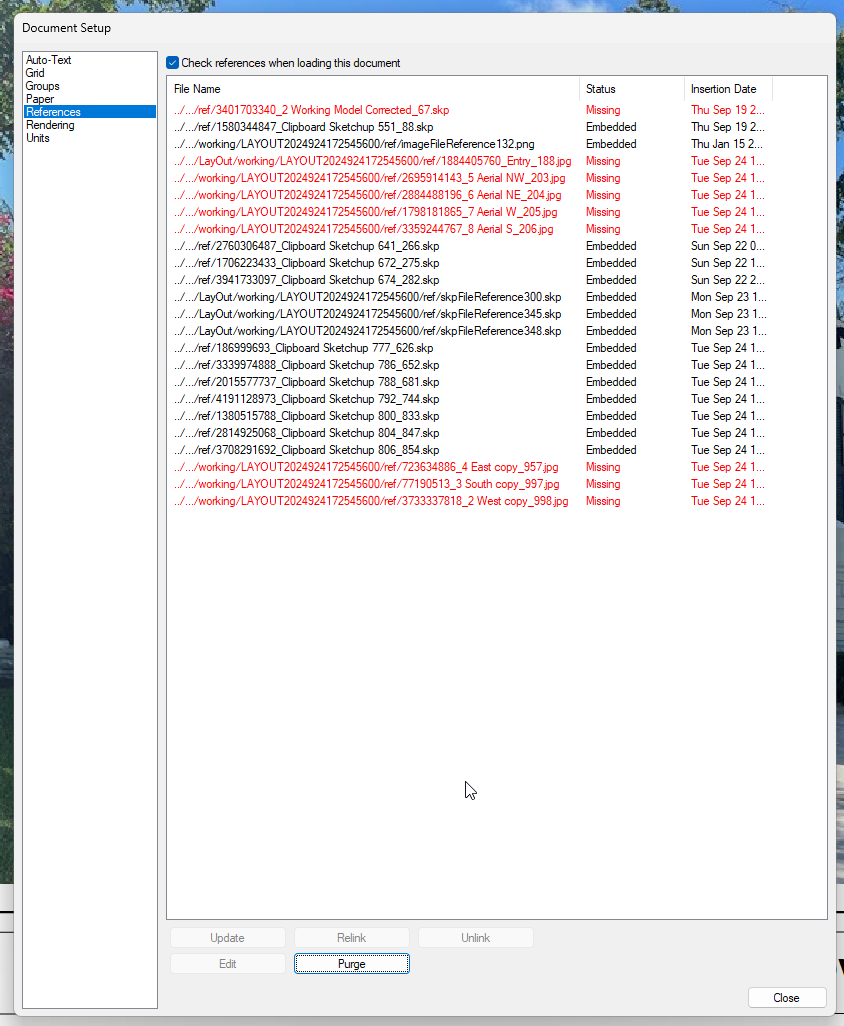
I see some concerning things related to your use of SketchUp in LayOut. First, you appear to be copying views from the SketchUp model and pasting them into LayOut. Each of the references in the red boxes here are for a viewport in the LayOut file.

The cleanup I did to your LO file and the resizing of the images reduced the file size by more than 67%.
I also note that you have not created scenes in the SketchUp files. Neither of these are good practice and likely to create problems for you later.
Since copying from SketchUp and pasting in LayOut creates an embedded reference, the resulting viewport is not linked to your original SketchUp model file. Edits you make to the original SketchUp model file will not carry over to LayOut. If you needed to make edits to the SketchUp model you would need to open it from LayOut but this will open the embedded reference, not the original file. Also, each time you copy from a SketchUp file and paste in LayOut you get another embedded reference .skp file. To make edits that should be reflected in more than one viewport, you would need to open each reference one at a time to make the edits. Likely you’d be making the same edit in several SketchUp references. Your process of copying and pasting is creating extra work for you and needlessly bloating the SketchUp file.
The other part; not using scenes and instead using Last saved SketchUp view is risky. If you open the SketchUp file to make edits, you have to make sure you save the file with the camera in exactly the same location or it will screw up your viewport. This will create more work for you. Example: This viewport …

I opened the reference SketchUp file and probed around a little as if I was making some edits. Then I saved the file. When it updated in LayOut it looked like this:

Unless your LayOut file is a one-off thing that you don’t care about and won’t ever need to go back to for updates and edits, the best workflow would be to create scenes in the SketchUp model for each view you’ll need in LayOut. Then use File>Insert to insert the SketchUp file into LayOut. After you’ve got the first viewport in LayOut you can copy it and paste it elsewhere in the document. Then change the scene for the new viewport as needed.
A side note: In the SketchUp file I opened I note incorrect tag usage. All edges and faces should be created and remain untagged and Untagged should remain active at all times.

Tagging edges and faces creates more work for you and adds to the likelihood you’ll create errors. Leaving Untagged active and giving tags to groups and components is easier and less prone to errors. Besides, who wants to waste time chasing tags while they are modeling?
Here’s the PDF I exported.
2 Design Model copy.pdf (2.9 MB)