Hi everyone, I ran into a serious issue yesterday, and I’m hoping someone can help me recover my work.
So basically, throughout the day, my file was autosaving normally. Near the end of the day, I exited SketchUp due to some camera problems, but when I went back to reopen the file, it only showed an older version as if that version had completely overridden the one I had been working on. The file is saved to Trimble Connect, so I checked there first. Unfortunately, the version history is very inaccurate. It only shows an older version of my model from more than two days ago (the latest listed version is #19 from 9;57am 6/10). I also checked the Activity tab, which says the files were saved at 5:25pm yesterday, but when I try to open that version, it still loads the older model instead of the updated one. I’ve also tried looking for autosave files (I have autosave set to every 5 minutes), but I can’t find them in the expected location in my Documents folder. I’m also not sure how to access or recover autosave files through Trimble Connect, if that’s even possible.
At this point, I’ve lost a full day’s worth of work, and I’m really hoping there’s a way to get it back. Has anyone else experienced this issue, or does anyone know a method to restore the correct autosave/version from Trimble Connect?
Any advice would be greatly appreciated.
(If this is the wrong space to put this, I don’t mind reposting this somewhere else. Just let me know where I should put it.)
There might be a mismatch, in the desktop version, ‘Autosave’ is merely just a backup for having issues when working, eg. a power outage. When a file get’s saved, the autosave version in the %localAppdata% or ~library on mac is deleted, weather saved locally or on the Trimble Connect server. (Autosave in the Web version does work like Microsoft apps hosted on Onedrive)
Once a file is saved to Trimble Connect, each subsequent [menu] > Save, CTRL+S,CMD+S is saving to the Trimble server, thus creating a version history.
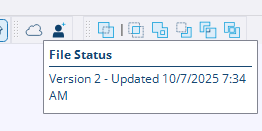
It’s current status is displayed when hovering over the icon:
If you open a file hosted on Trimble Connect, it always opens the latest version. One would have to go to the project in the browser, select the file with the checkbox and check the details pane on the right to download the wanted version locally and open that, make changes and save back to wherever you need.
Regardless of saving locally or in the cloud, it should have prompted you to Save. If not then you saved the file already and did not started a new drawing action. If you neglected that message, check the working folder in your user library ( Mac ~/Library/Application Support/SketchUp/SketchUp 2025/SketchUp/Working) or scrolll down in the Welcome screen to see any red ‘recovered’ files.