I just installed (and updated) ThomThom’s 3D Text Editor. However, I do not see any toolbar for it and I cannot find out how to use it. When I look at the extensions I have installed it shows up in the list but again, I have not found any way to access it.
Do you have TTlib2 installed? Have you restarted SketchUP?
Yes, I have restarted SketchUp and yes TTLib2 is installed. As a matter of fact, I just had to update the 3D Text editor.
There was never a toolbar for it. You can start it from menu:
- Draw » Editable 3d Text
- Context Menu » Edit Text (Available If the text component created with TT 3D Text Editor)
1 Like
OK, I found it and got it working. 
Unfortunately, the font I selected had a little problem when I applied a material. There was an area of the text (capital H) where there was a face I count not control when applying a material. No big deal though, I can always select a different fond. The other problem I had was I tried to make the text italic and it did not apply italics with any of the fonts I tried.
However, I was able to get the extension to work. Again.
Share the .skp file so we can see what you are talking about. What font were you using?
Don;t remember the font and did not save the file. Will try again some other time and then share the info. 
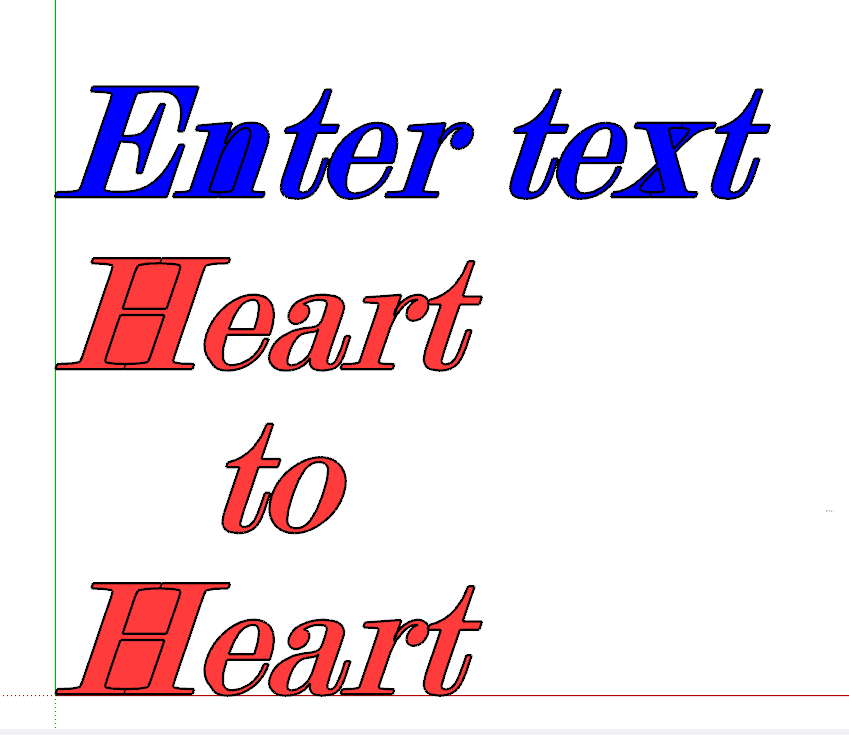
OK, @DaveR here is a screen shot of the problem I discovered, and the file that contains the text. The font is Modern No. 20
3D-Text-Test.skp (315.7 KB)
Notice that in the “Enter text” text, you cannot delete the color in the letter “n” and “x” and in the “Heart to Heart” text there is a problem with the “H”.
The serifs are huge in that font. It’s kind of no wonder you get that result. Triple click on the geometry in one of the letters, right click on it, choose Intersect Faces>With Selection. Then you can delete the faces filling where the voids are supposed to be. Also, apply the material/color to the faces, not the components.
On second thought. I’d just remove that font from my computer and not use it for anything. It’s nasty.
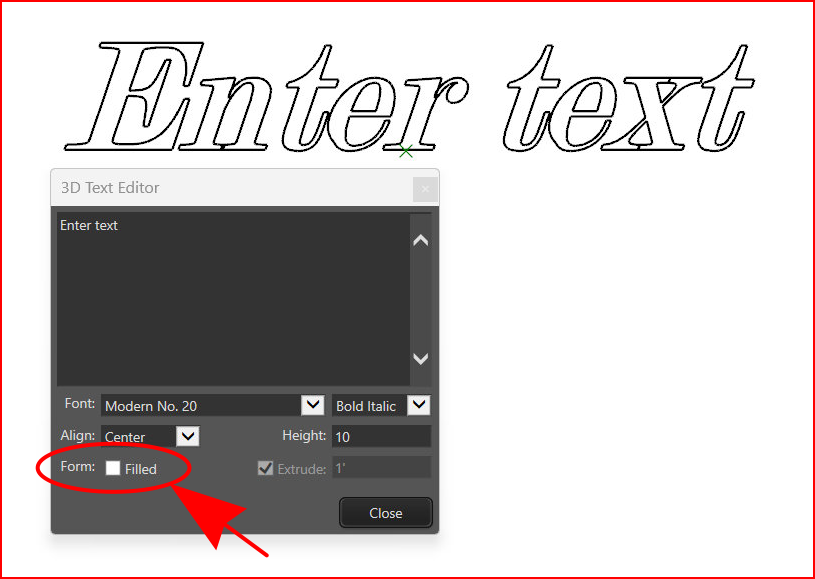
I tried the triple click and etc. but it did not work for me. However, I did find a VERY easy solution. If you look at the image below, all I had to do was uncheck the Form Filled box. 
That works great unless you need to apply a material to the text since it leaves you without faces altogether.
I will try again tomorrow but I thought it did apply a material to the text.
If you untick the box for Filled, there are no faces created and without faces so no faces to paint.
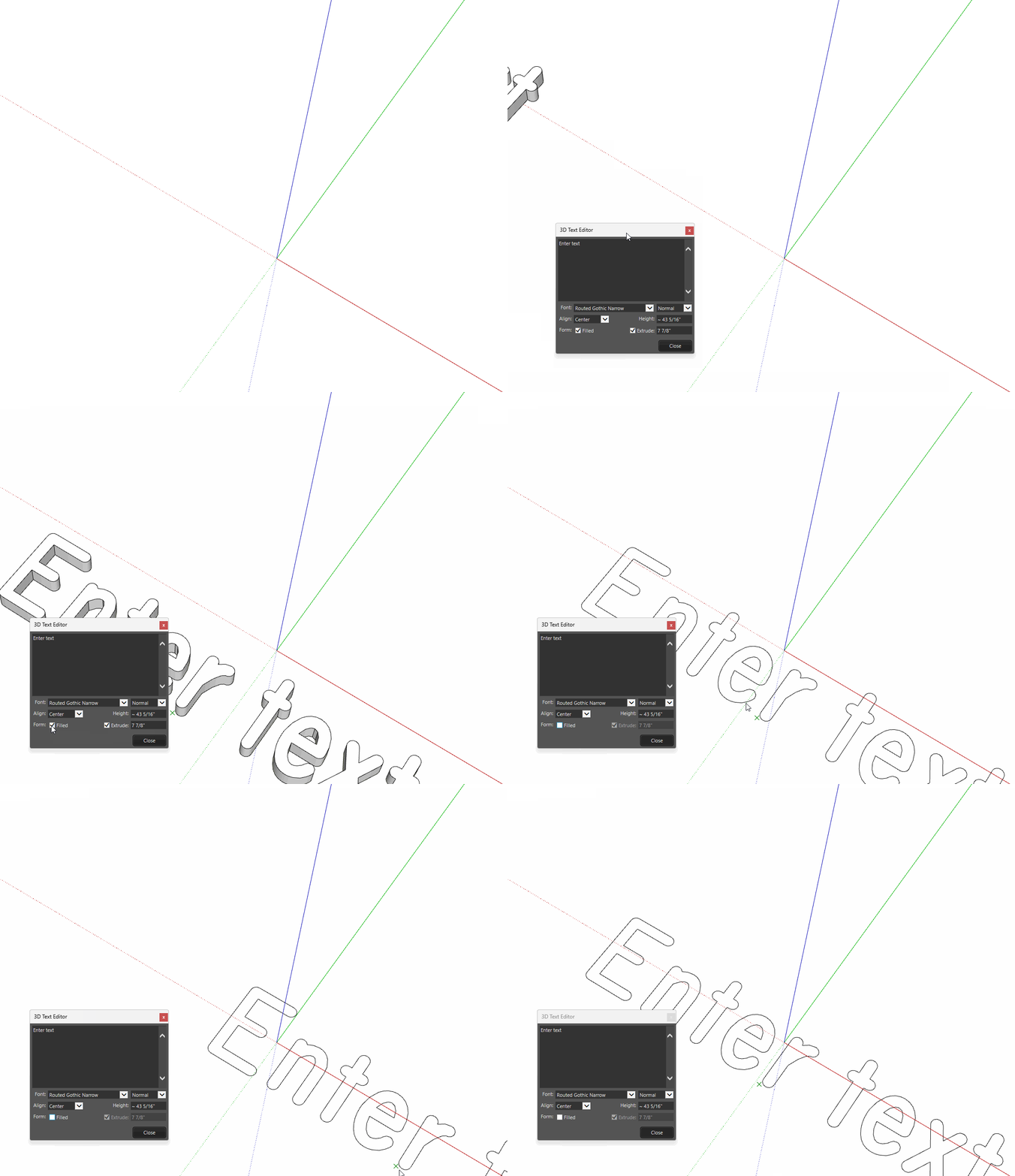
OK, I just tried again and you are correct. I am wrong… 
I just tried the triple click thing again but could not delete the faces (like in the letter H).I must be doing something wrong.
There a multiple faces in the void spaces. If you remove the material so the front and back face colors are displayed you can see the Z-fighting from those faces.
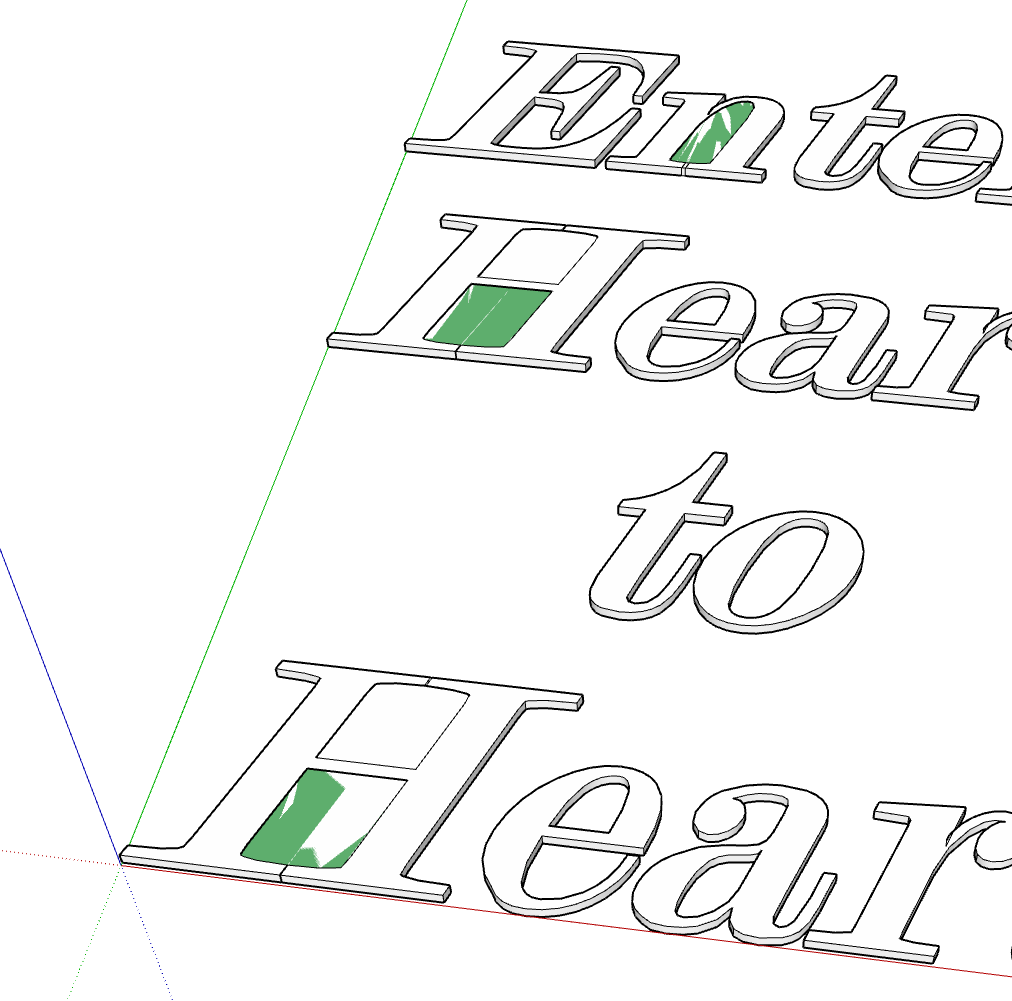
If you are dead set on using this font, I would suggest abandoning this lousy geometry and start over. Make the text with fill but without any extrusion. Clean up the geometry to remove and coplanar edges and then use Push/Pull to extrude to thickness.
Also do not apply colors of materials until you have the geometry made correctly and then apply those materials to the faces, not the component containers.
I think the first thing is to avoid that font.
However, I am going to try your suggestions just to learn how to do the things you mention.
One last **silly ** question though. How do you remove a color/texture from an object? I have never done that before.
Good idea.
I don’t know if its silly. Select the default material from the Materials panel and apply it like you were applying any other material. Make sure you are applying it in the same context. So in the case of the the blue and red text in your example, click on the components to replace the color with the default material.
@DaveR I really appreciate your feedback and patience on this issue. Thanks to your latest post, I finally got it to work the way you told me. Here is a screen shot of the text with the same font.
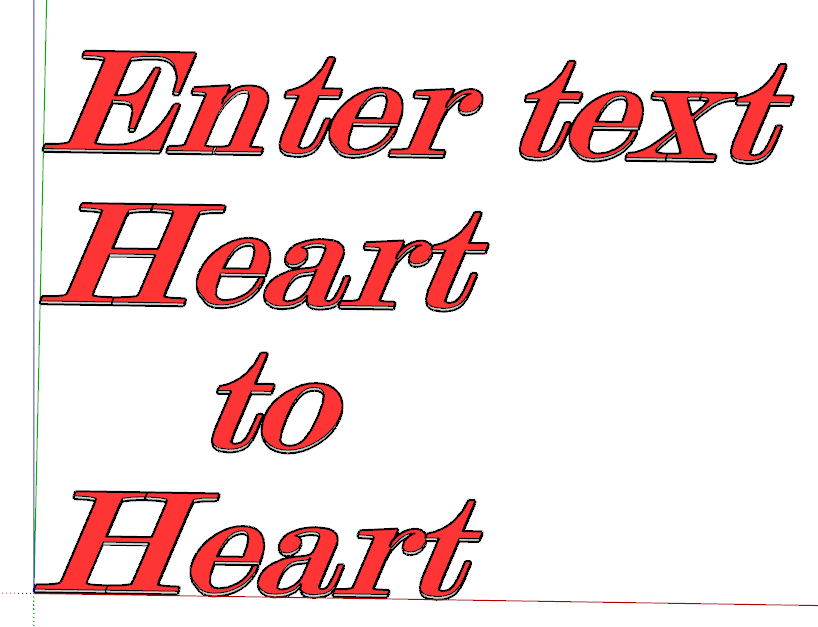
As it turns out, a couple of the key issues were first applying the material to one letter at a time. I was then able to handle the letters that had the issue using the triple click method.
Again, your feedback and patience have been a great learning experience. I have used SketchUp for several years now but since I lost my “sponsor” and am no longer doing car wash equipment and layouts I am going down roads and trying new things. Sometimes I feel really “dumb” because some of the issues I am addressing seem to be “elementary”
I have a couple of threads over on the SketchUcation forum that points some of this out:
*(Create new or adjust materials | sketchucation)
*(Rayscaper render. | sketchucation)
Both or these threads lead to the development of this video: