I’d like to ask for a feature request that is related with 5D+ Library and 5D+ Plus.
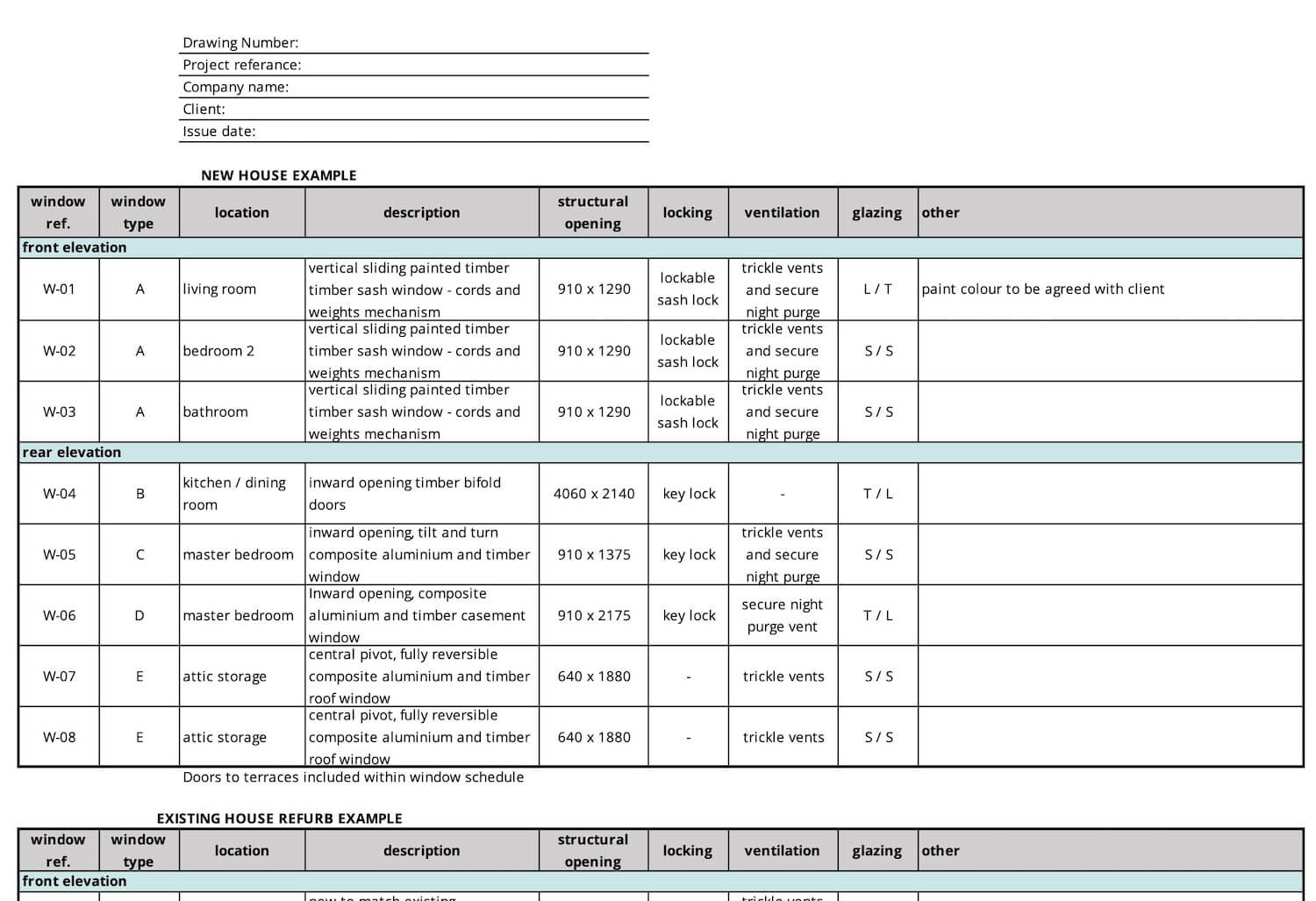
The idea would be to help us create Doors, Windows, Furniture and any other object Schedule from a model, with the help of the library, Selector feature in 5D+ Plus using Tags, component export capabilities and Layout API that is able to do little, but where creating drawings from Sketchup models automatically is possible.
So, the idea is:
Use 5D+ Plus to create a recurrent selection of objects by tag (windows, wardrobes, kitchen cabinets or whatever)
Export those objects into a folder managed by 5D+ Library
Label all exported objects in all drawings with 5D+ Plus
Rename all components and objects into a cohesive system of naming and alpha numerical tagging that allows for coordination between drawings;
Allow for adding a description for each object using 5D+ Library or a cool UI in Sketchup
Send all objects to Layout as viewports with elevation view and planview from Sketchup plans where those objects are found
Add the name, description and dimensions on the Layout file
Add the ability to refresh the drawings when new objects are added to or removed from 5D+ Selector.
Add a table schedule to the Layout file.
Would it be feasible?
This way we could automatically create the following document which is very tedious repetitive work, but essential on any project construction documentation:
Hello,
I will deep dive into your requests later, but why you did not mention 5D+ Auto Info?
It was designed for almost your requests above and can expand more abilities.
The 5D+ Library is not match for a tool to add or extract information, I think.
About auto-generate drawings for Doors & Windows, it’s already in the roadmap
In this video, I created a Doors & Windows schedule in seconds.
It seems that it’s me that has to dive deeper into everything you’re doing here.
You’re always one step ahead!
Yes, but it’s a tool to manage libraries of objects, right? That was why I was imagining the request.
It seemed interesting to me that Library and Plus would have features that would complement each other and it seemed to me that this was a potential use case. I haven’t investigated Auto Info yet.
Will the feature set of Auto Info allow us to create/edit IFC attributes for single objects or in bulk?
I’m waiting in the hope that SketchUp 2025 supports IFC 4x3 (fully export) and make it become more solid, then I will develop all things related to IFC classes with 5D+ Auto Info. (and Dynamic Components, too)
Once again regarding the assignment of the preview images… I don’t know if and how you want to integrate it, but if an automatic assignment based on the name is planned, it might not be a bad idea to extend the search to subfolders. Maybe some people prefer to save the images separately in an extra preview folder.
I gave it a try but no luck.
Attempt 1: I go to Sketchup Components window and save a dynamic component into a file. Then I open this file and the DC is exploded = nested components are available but the DC parent and related information and attributes are lost.
Attempt 2: I select multiple DC’s and in 5D+ library I select “Add components to this folder”. The thumbnails in 5D+ are still wrong. The saved files are exploded again like above.
I do not really see how I can save files and regenerate thumbnails with the new angle, unless I am missing something important.
You 're missing a “feature” of DC. When you save as a DC (as a component), and then you open the file. It’s exactly the same with you descibed above. But don’t worry, because when you import or reload or drag it from component tray, it become a normal DC. Because the file itself, when inserting into another file, it is already a component.
So you just need open the DC file, choose the right camera and press save. That’s it.
Wow! It was not intuitive but this works, thanks! Still… 5D+ inserts them according to the origin (so I see the backside first) but can rotate it with arrow keys.
As I said in the previous post, your DC is setup with the wrong Axes. When you open a group of DC it’s local axes should be like this. The origin can be at a different position (it is the insert point), but the axes must be the same direction as image.
Is there a way to use this extension to also search for and place components from within a model, for those models that contain lots and lots of components? For example, I use a single Sketchup model for a library of 3D vehicles (as well as one for people, trees, lighting, etc) which might contain 20-100 different components.
Good morning @Cyentruk - I have a small feature suggestion for the plugin for us pesky Mac users. Could you exclude files ending in ~.skp from being shown in the Asset Management. These are Backup Save-Files (unfortunetly they are not being saved as .skb like in Windows). It’s annoying to have them in the Asset Manager and it’s also annoying to have to delete them every time I need to change an asset file.
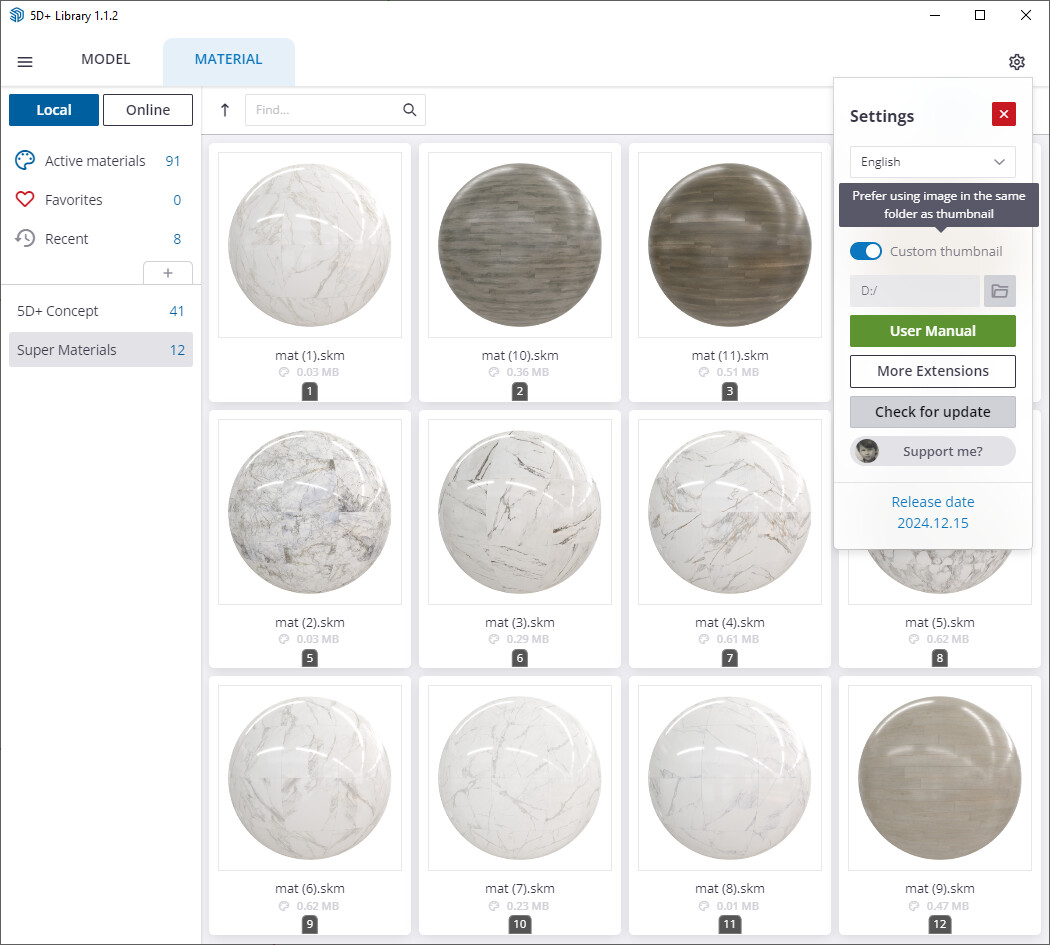
Add an option to use custom images as thumbnails. Valid images must share the same name as the model/material, be in the same folder, and belong to the following formats: bmp, jpg, jpeg, png, tga, tif, and tiff.
Add an option to allow users to input texture dimensions before batch converting them into SketchUp materials.
Exclude files named “…~.skp” (backup files on macOS) when browsing collections in the Model.
Please press the button “Check for Update” from settings if you don’t see a notice message when open the dialog.
Thanks, @bmaxim. The extension can only display components within an open/active model. I’m hoping it can do the same for non-open/non-active models as well.