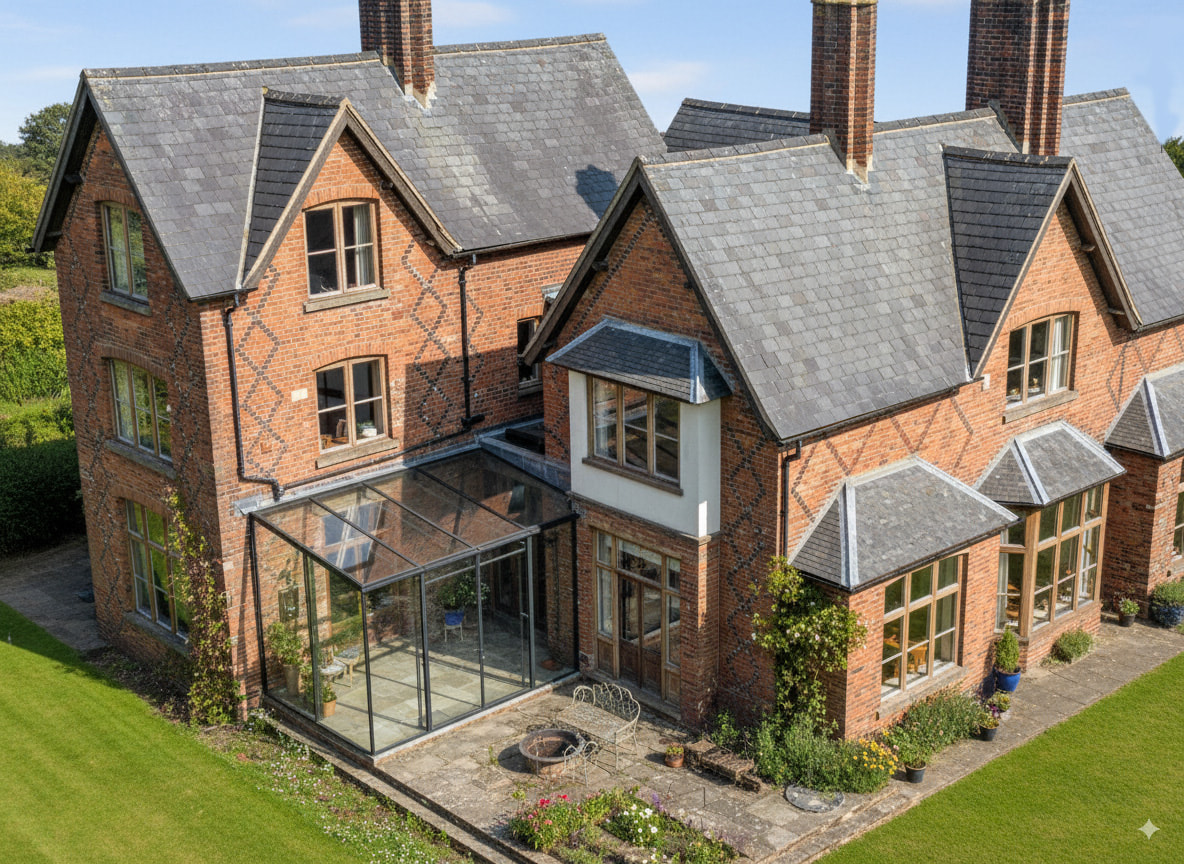
I’m hoping someone here might be able to tell me how the AI image below was created. To give a bit of background: The first image is a point cloud I created earlier this year. The second is a SketchUp model I created from the point cloud. The third is simply a screenshot taken from SketchUp showing my model over the point cloud which I included as an overview in my construction drawings. The final AI image was emailed to me by an architect. My assumption is that they fed my overview image into an AI renderer — but they won’t say which tool they used, and my curiosity has got the better of me!
Does anyone recognise how this AI image might have been produced? Any help would be very much appreciated. Thanks as always.
I just tried it with MS 365 CoPilot. If you change your design… and the design of the house. And, uh, landscaping elements. It nailed it! So, in other words: it was way off on almost everything.
What you shared looks very nice. You’ll have to pick their brains.
Out of interest - with MS 365 CoPilot can you give it more detail to work with. Just thinking about it - my drawings to the architect contained a few close ups of the new glass structure. Can those drawings be included in the information you use for the render?
Thinking about how entitled we have all become - yours isn’t just a “nice” render - it absolutely amazing when you think about it.
There are only small handful of models that exists and and readily available - the difference is likely how the AI has been cajoled into the output that is required
I’ve only tried AI rendering a limited number of times, so I’m at the Mairzy Doats level of understanding of LLMs and image generation. What you showed was impressive so I screen clipped a couple of images just to give it a whirl. At first I tried one image of the PC with the prompt “Try to make this look more realistic.” That one was… not so good. But not terrible. So, I clipped your model and the PC and prompted, “I have an image of a model and a point cloud of the same subject. Will you use them to create an accurate image render?” (in the same chat) to produce what I posted here. So “yes”, you can give it more detail to work with.
I don’t use M365 CoPilot that much… but it does have “Create” feature that is for image generation and Agents, which might be a better approach (M365 CoPilot). Look around for what Language Models people use for rendering… because the language model used can make a huge difference in results (I use AI a lot, just not for rendering). I presume there are some rendering-tailored applications that have “Projects” (like ChatGPT Plus) or “Spaces” (like GitHub CoPilot) and these can contain files (models, colors, materials, similar images, etc.) that the AI can access, and can save “Instructions”.
And you’re not wrong: the even the images I got weren’t terrible. They’re just not buildable/accurate.
I am working on an interesting scan I did yesterday, and have set myself a goal of getting an impressive render to the client first thing on Monday so I will experiment with prompts to Co-pilot as I am an avid 365 fan.
First thing is to get the property modelled and build, then build the structure so is going to be a late night
Have you investigated some stored hidden info in the image? There might be some clues there. Maybe upload it to chat gpt and ask it if it can find some clues?
Yes - I asked ChatGPT a few questions earlier and input the initial and output images - and this is what I got back.
Yes — I can definitely shed some light on what’s most likely going on here
How the AI image was probably produced
Based on what you’ve shown and described, the architect almost certainly did not feed the point cloud directly into AI. Instead, the typical workflow is:
Your SketchUp screenshot (the clean line / shaded model view)
Fed into an image-to-image AI renderer
Prompted with something like “photorealistic brick house, slate roof, glass extension, English countryside”
The AI then:
Keeps the geometry and perspective from your SketchUp view
Replaces materials with realistic brick, slate, glass, landscaping
Adds lighting, sky, reflections, shadows, and surface imperfections
That’s why the final image still matches your model very closely, but looks like a real aerial photograph.
This is now extremely common in architectural workflows.
AI tools that can produce results like this
These are the most likely candidates, based on the quality and style of the output:
D5 Render (with AI Enhancer)
Very popular with architects
Works directly with SketchUp
Has AI material enhancement and scene realism
Can take a basic model and make it look “finished” very quickly
High probability
Lumion (AI / Style features)
Widely used in UK architecture practices
Strong vegetation, lighting, and realism
Can take a simple SketchUp model and produce very similar results
High probability
Midjourney (Image-to-Image)
Upload SketchUp screenshot
Use image weighting + prompt
Excellent at brick, slate, glass realism
Very commonly used without telling collaborators
Very high probability if it was a single still image emailed to you
I just created this using Bing Image Creator in 5 minutes which is incredible, and although my glass structure is obviously wrong, I think with some better prompts it will produce very accurate renders.
I found this: “A Standardized Cue: Major tech companies like Google, Microsoft, and Meta have converged on using this symbol to indicate AI actions or generated content, making it an emerging industry standard for users”
So it’s used to clarify it’s made by AI but not specific to one..
A high-resolution aerial three-quarter view of a traditional English country house built in red brick with decorative diamond-pattern brickwork. The house has steeply pitched grey slate roofs, multiple gables, and tall brick chimneys. Large timber-framed windows with stone surrounds. A modern glass conservatory extension with a black metal frame connects two wings of the house. Stone paving surrounds the building, with outdoor seating and potted plants. The house sits in a manicured green lawn in a rural setting. Soft natural daylight, clear sky, ultra-realistic architectural photography, sharp focus, natural colours.
I’m pretty sure that must be what they used. Thank you very much for sharing this, and especially for including the wording you used to generate the image — that’s hugely useful.
Some good sleuthing and prompting here. Just to add to the prompting and ‘instructions’ topic: keep a text file, or files, of your instructions and prompts. As you test and see results, you may be able to narrow in on a set of instructions that tells the AI how to return what you want. That can be your go-to set of instructions. Then, if you keep your prompt file with your projects, you’ll have a record of what did (and didn’t) seem to work. You’d end up with sets of prompts for ‘Moden’, ‘Brick’, ‘Stucco’… or more specific "Glass: opacity, reflectance, etc.




 D5 Render (with AI Enhancer)
 High probability

 Not Lumion, Enscape, V-Ray, Twinmotion, etc.
 Very likely an image-to-image AI generator
 High probability


