Using a MacBookPro, Tremble Sketchup for web - very satisfied.
I have drawn a woodshed, and now I am on the roof and wall boards.
First I had the roof at 14 degrees angle, but had to reduce it to 10 degrees.
And I can not remember how I got the side panels to be flush with the roof.
Is there an easy way I can adjust my angle on the side panelling, so it flushes with the angle of the roof (underneith it)?
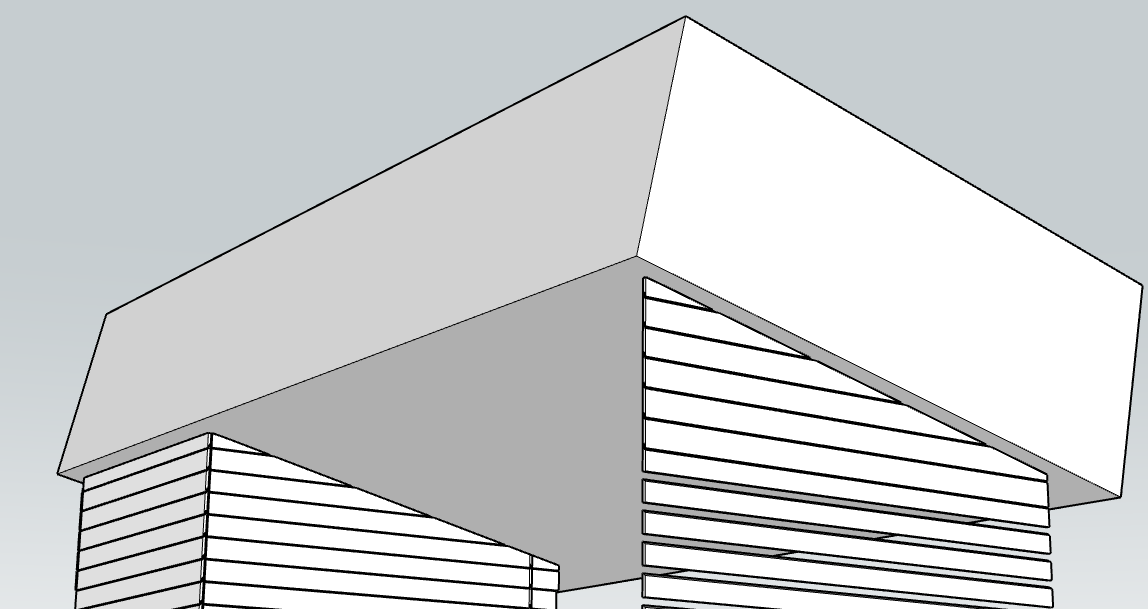
A picture of the roof is attached, and then from the other side, picture of the roof and the side panels extruding the roof because of changng the angle of the roof.
It depends on exactly how you modeled the objects. Most likely you could open each object for editing, select its faces, and use Intersect Faces>With Model to outline where the roof panels meet the siding. Then erase the waste and fix any missing faces.
If you share the actual .skp file it would be easier to give you direction.
BTW, please update your forum profile since you aren’t using SketchUp 2023.
So yes, in your model and with SketchUp Free, do as I wrote. Open a siding group for editing, select the faces, right click on it and choose Intersect Faces>With Model. Then erase the waste. I did that here and then I hid the rest of the model.
If the angle of the roof had remained the same, you could edit the group, select the geometry at the end and then just move it. But in this case the intersect faces and delete the waste is the option.
FWIW, if you were using SketchUp Go instead of SketchUp Free you would have access to the Solid Tools. Then you could just use the roof sheathing to trim the siding groups. That would be faster and fewer steps. Here I create a large single cutter with which I trimmed the siding groups. That sped up the process a bit more than using the sheathing groups.
@DaveR: It works also with Sketchup Free, but I can not seem to get the trimming right.
I can erase some of the lines that are waste, but can not get the line tool to work properly to make a new surface on the open element (after getting rid of the extruded part of the element).
Would you mind do this for me and save the file and return it?
I only need the one wall done (on the right side of the shed). I can then just copy those elements and correct thos two other walls myself.
What also works with SketchUp Free? If you are referring to the Solid Tools, you must be working in the trial period which gives access to the features of SketchUp Go including the Solid Tools. When the trial ends you’ll lose the Solid Tools.
Intersect Faces works in SketchUp Free which is why I suggested that version.
You have to be careful to ensure you are erasing the right geometry and that the edges you are leaving are all in the same plane.
I already shared the SketchUp file after trimming the siding boards. It’s in my previous post.
I did all of them.
FWIW, if you’d made components instead of groups for the siding boards you could then copy them for the opposit end and then when editing one, the corresponding one on the other end would get trimmed at the same time.
Thanks a million @DaveR, I will look into your last post and download the skp file.
The funny thing is that I have done this before (about six months ago), but now I haven’t used SU so much lately, and I have forgotten how it was done.
But you saved me.