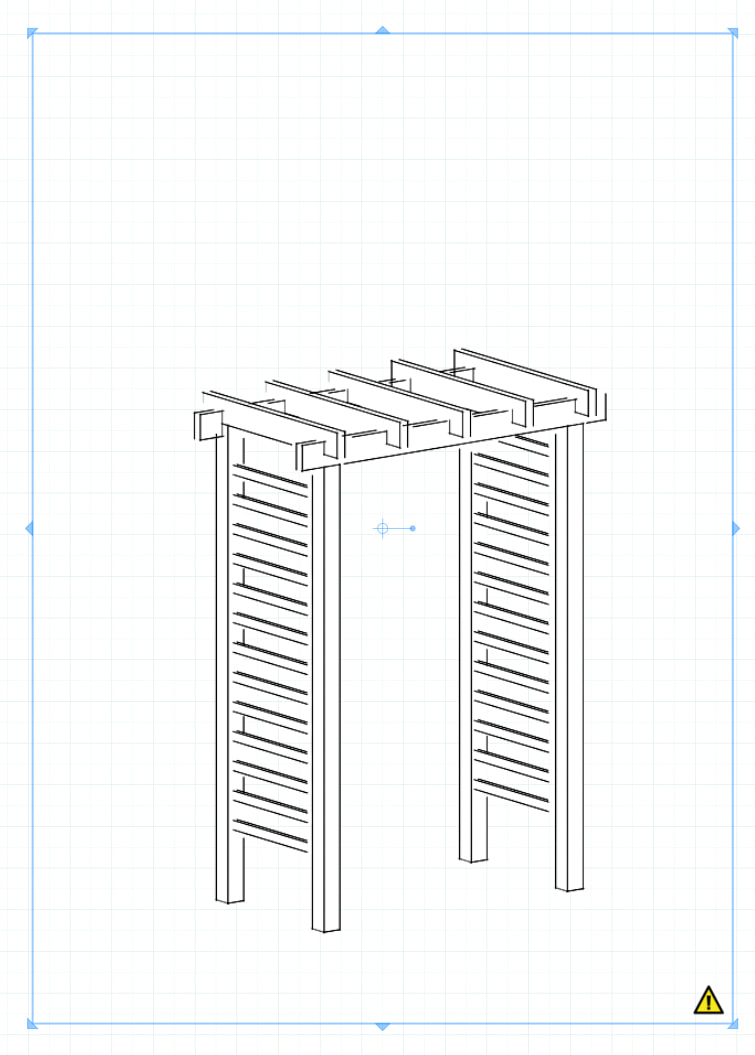
Hi. After updating SketchUp and LayOut to 2026, it’s impossible to work in LayOut. There’s only an exclamation mark on the models, which I’ve never experienced before. I’ve tested with several files.
I tried creating a new SketchUp file with a simple pergola model and imported it into LayOut to see if that would work. I can’t even get this simple model to render as vector. What can I do to make it work?
There is certainly something odd about that image. Looks like a lot of the lines furthest from view are not rendering.
The exclamation mark occurs for me to indicate a mismatch between the SU file and the image on screen in LO. So, for example, if I am editing a model, I start by opening the LO file. I then use Open in Sketchup for the relevant window. Once the SU file has been edited, I revert to LO. At that point, LO automatically re-renders and you see that yellow warning triangle whilst it does so. If you have a number of windows based on the same SU file, they will all display the triangle until they have been updated. I imagine that if I had a faster processor, I might not see the triangles for as along as I do as the processing would be done faster.
Without seeing the LO file you have, it is difficult to know exactly what your issue is.
Hi. Unfortunately, it’s not just the file I showed — I’m having problems with all files I open in LayOut after updating to 2026. When I make a change in SketchUp and then update the file, nothing happens. Changing scenes doesn’t do anything either. The exclamation mark never disappears.
I’ve also tried creating a completely new model in SketchUp 2026 and exporting it to LayOut. That file can’t be worked with at all — I can’t change the scale or set it to vector, for example. If I try to do anything, it goes blank and only the exclamation mark remains.
I’m attaching the files (SketchUp and LayOut) — on my screen it’s now just an empty frame with an exclamation mark. Let’s see how it looks on your side.
I’ve never experienced these kinds of problems in previous versions. As it is now, it’s impossible to work in the program. Would it be a good idea to reinstall everything?
The files you share work fine for me. I added a scene in the model and linked the reference to the copy on my computer. Changing scenes is instant.
Since you have the viewport rendered as Vector I changed the style to the default Hidden Lone. There’s no point in using the sketchy style you have in the model if you’re going to use Vector rendering.
Is this file you shared something you made just to upload here? Maybe you can share a more complex LO file that illustrates the issue.
Where are the SketchUp and LayOut files being saved while you are working on them?
Most of the viewports in the file are set up to be rendered as Hybrid and the few others as Vector. That choice combined with the more than 1.5 million edges in the files means updates to the viewports can be slow because LayOut has to consider all of those edges for rendering. It would be faster to update the LayOut file if you left the viewports rendered as Raster. You should also do a test PDF export with the viewports left as Raster rendered. You may find the quality is perfectly suitable and then you won’t need to make yourself wait quite so much.
Simplifying your models wouldn’t hurt either.
I relinked the references to the SketchUp files you shared. I also set the viewports to Raster rendering with the high display quality option. Then I made a copy of the rocks in the SketchUp file, saved the change and updated the reference. This is shown in real time here.
I also recommend using Raster rendering when working. If you need vector lines, for instance for export to DWG, you can check the Output Override checkbox and set the override to use Vector. (BTW, to me the Swedish translation of the feature sounds wacky (Åsidosätt…), maybe AI generated? @ene_su ? )